MQTT v3 Publisher
Description
MQTT v3 Publisher is an Adapter providing data publishing support through an MQTT broker.
The client connection to a broker setup is configured in a reusable MQTT V3 Client Configuration Landscape entry. The structure of the published data is specified in a message type instance.
Create a new MQTT v3 Publisher
To create a a new MQTT v3 Publisher Adapter follow the steps described in the general description of Adapter.md
Edit an MQTT v3 Publisher
The editor for an MQTT v3 Publisher entry provides controls to assign the related and referenced scenario entries.
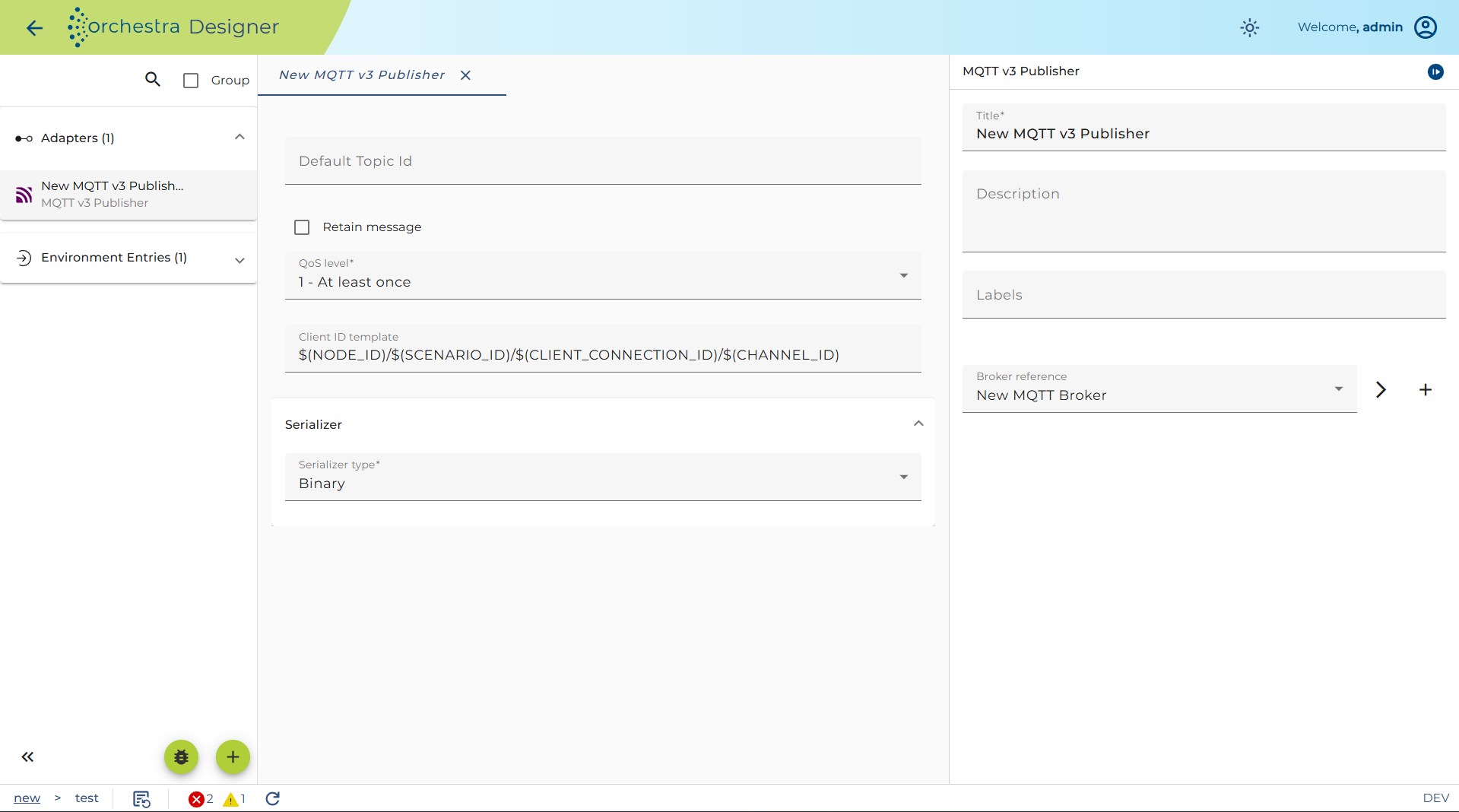
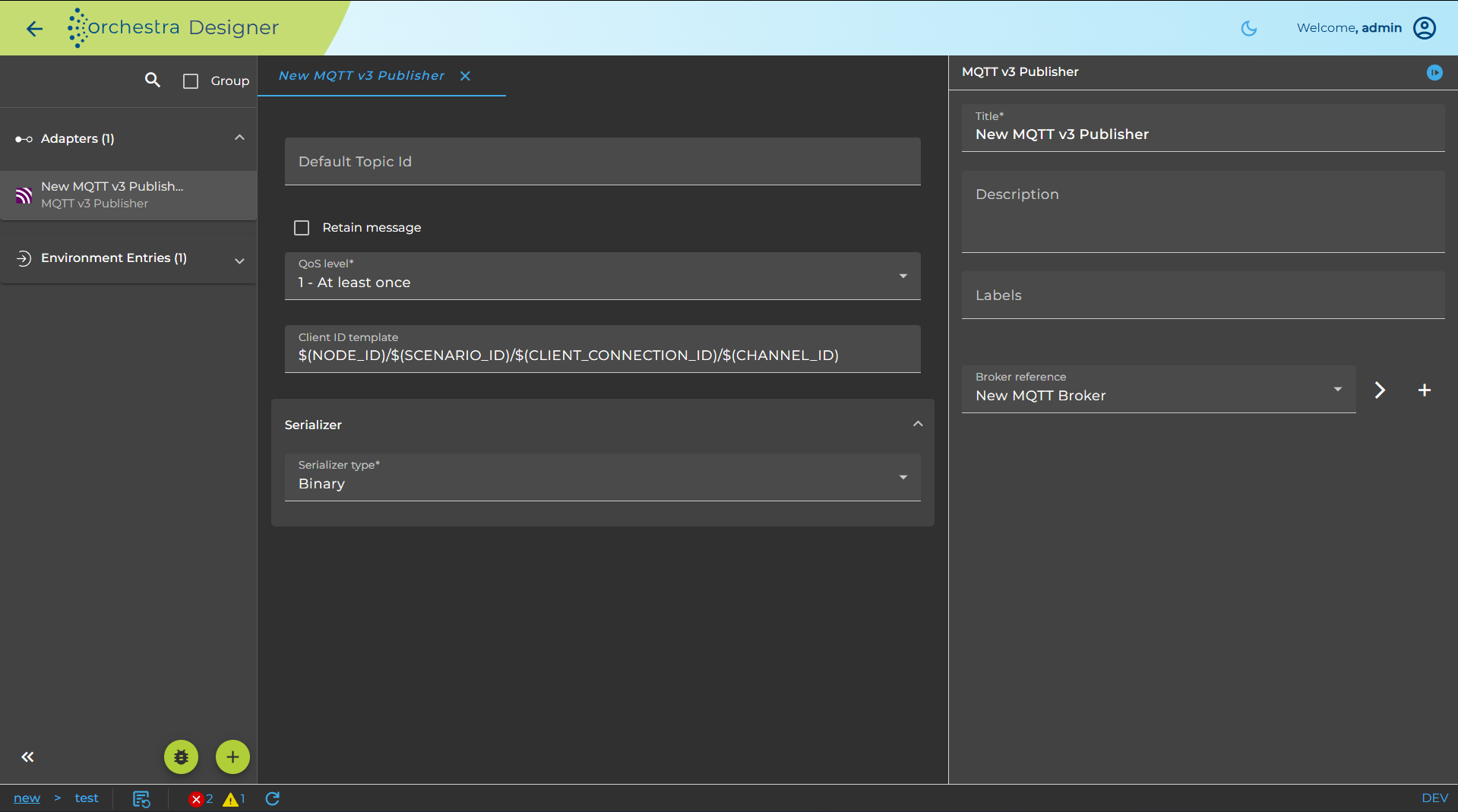
The field named Client ID template provides a means of customizing the client ID used for the MQTT session.
The field Default Topic Id accepts MQTT topic paths where the message should be published to. This value is the default that is used, when no dynamic topic id is given with the "TOPIC" parameter in the channel invocation.
In the section Serializer, the writer for the desired message format. such as XML can be selected.
Dynamic Parameters
The Client ID Template supports dynamic composition using referenced Orchestra run-time and scenario elements.
By default, the following value is set
($(NODE_ID)/$(SCENARIO_ID)/$(CLIENT_CONNECTION_ID)/$(CHANNEL_ID))
This allows dynamic parameters to be specified. These parameters use the $(PARAMETER_NAME) format (for example: $(CHANNEL_ID)).
When the channel referencing this environment entry is executed, the parameters are parsed and replaced with the corresponding scenario element values.
Test an MQTT v3 Publisher
You may test the MQTT v3 Publisher Adapter like every other outbound channel.
If the channel is configured, the user can test its functionality by clicking on the test symbol in the toolbar of the Designer.
Then a dialog opens showing the parameters of the channel. Set the required parameters and click the Test button to send the mail.
Before pressing the Test button, a message must be provided in the Request parameters field. Under the Value column, locate the row where the Name column is MSG.
Double-click the corresponding Value field to open a file selection dialog. A message file can then be selected and provided to the writer.
The tabs Logging and State show the log entries of the channel invocation and the current state, respectively.